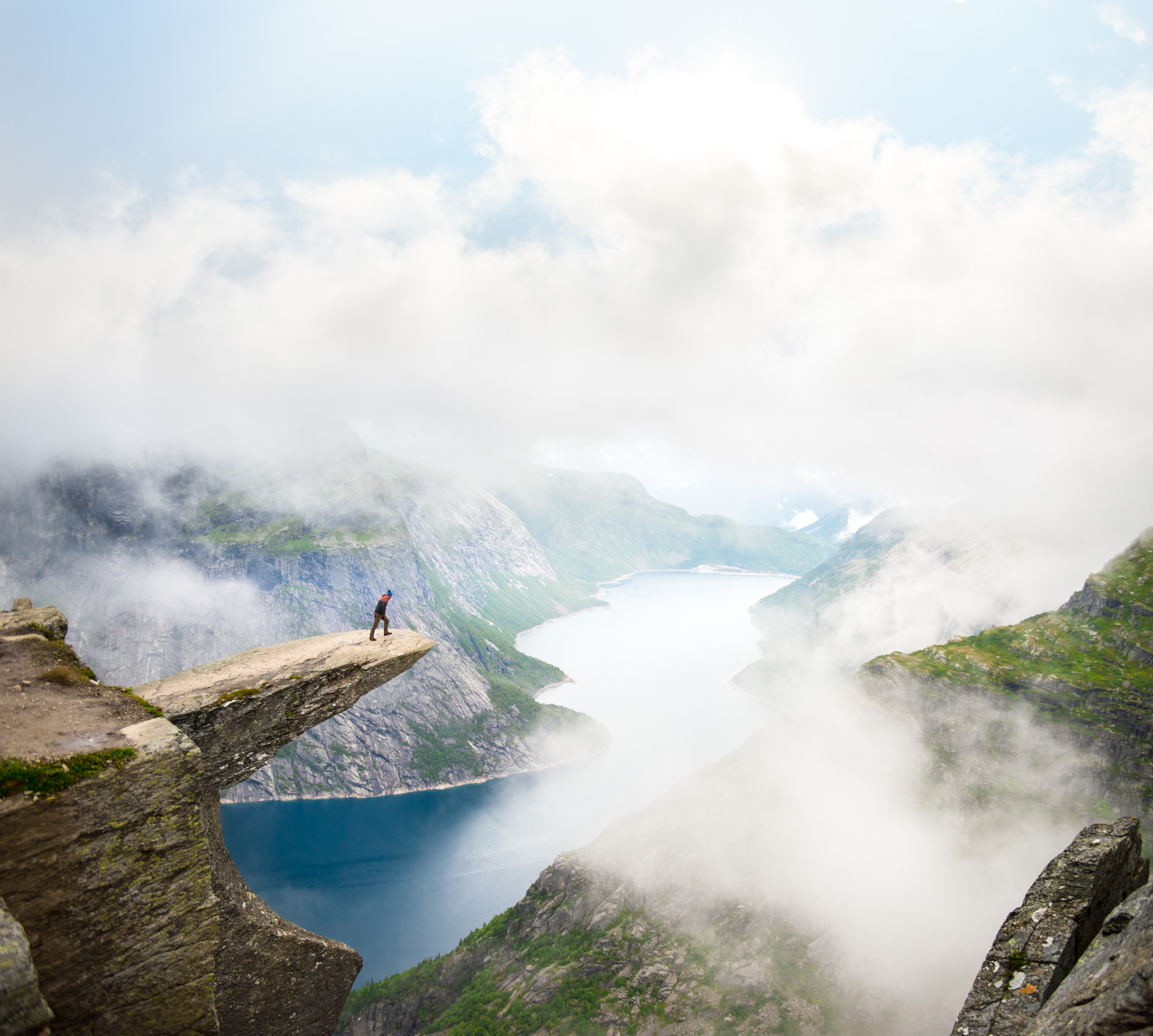
Adjusting the white balance in Photoshop is a straightforward process that can significantly improve the color accuracy of your images. Here’s how you can do it:
- Open Your Image: Start by opening the image you want to adjust in Adobe Photoshop.
- Go to Image Menu: At the top of the screen, click on the “Image” menu.
- Select Adjustments: From the dropdown menu, select “Adjustments.”
- Choose White Balance Tool: In the Adjustments submenu, you’ll find an option called “White Balance.” Click on it.
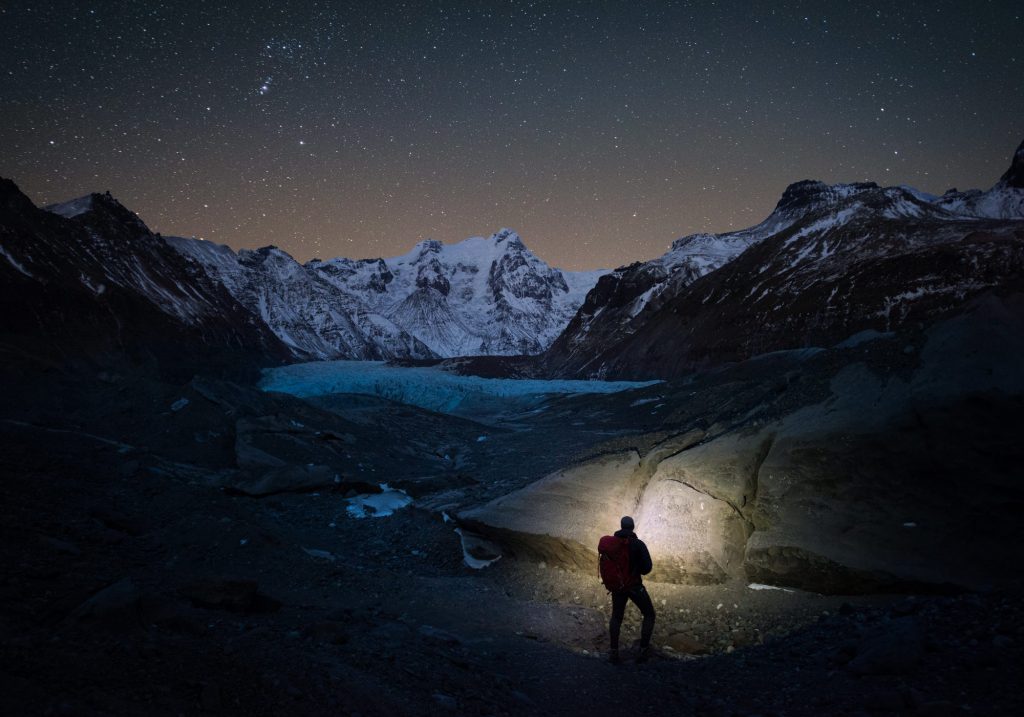
- Use the White Balance Tool: Click on an area in your image that should be neutral gray, white, or black. Photoshop will automatically adjust the colors to correct the white balance based on your selection.
- If you’re working with an image that has a white or gray object, clicking on that object will often give you the best result.
- If there’s no white or gray object, you can try to find an area that should be a middle gray and click on that.
- Manual Adjustment: If the automatic tool doesn’t give you the desired result, you can manually adjust the white balance using the “Temperature” and “Tint” sliders in the “Image” > “Adjustments” > “Color Balance” menu.
- Temperature: Slide to the left to cool down the image (add blue) or to the right to warm it up (add yellow).
- Tint: Slide to the left to add green or to the right to add magenta.
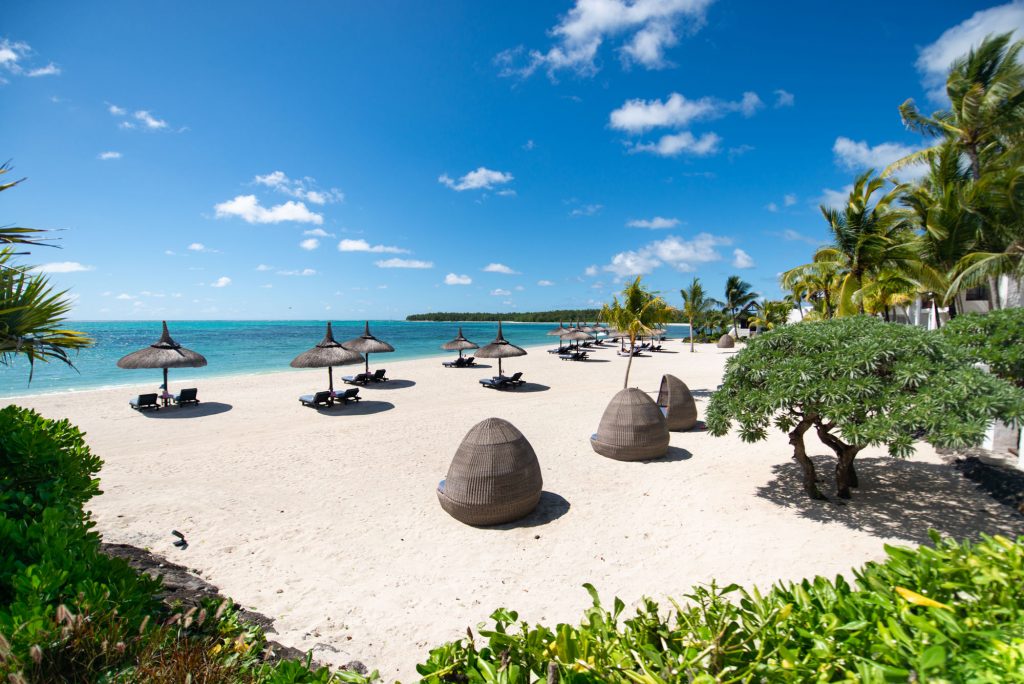
- Fine-Tune with Additional Tools: After adjusting the white balance, you might want to further refine the colors using other tools like “Hue/Saturation,” “Vibrance,” or “Curves” to enhance the overall color harmony of the image.
- Save Your Work: Once you’re satisfied with the white balance adjustment, save your work. It’s a good idea to save a copy of the image with the adjustments (using “Save As”) so you can go back to the original if needed.
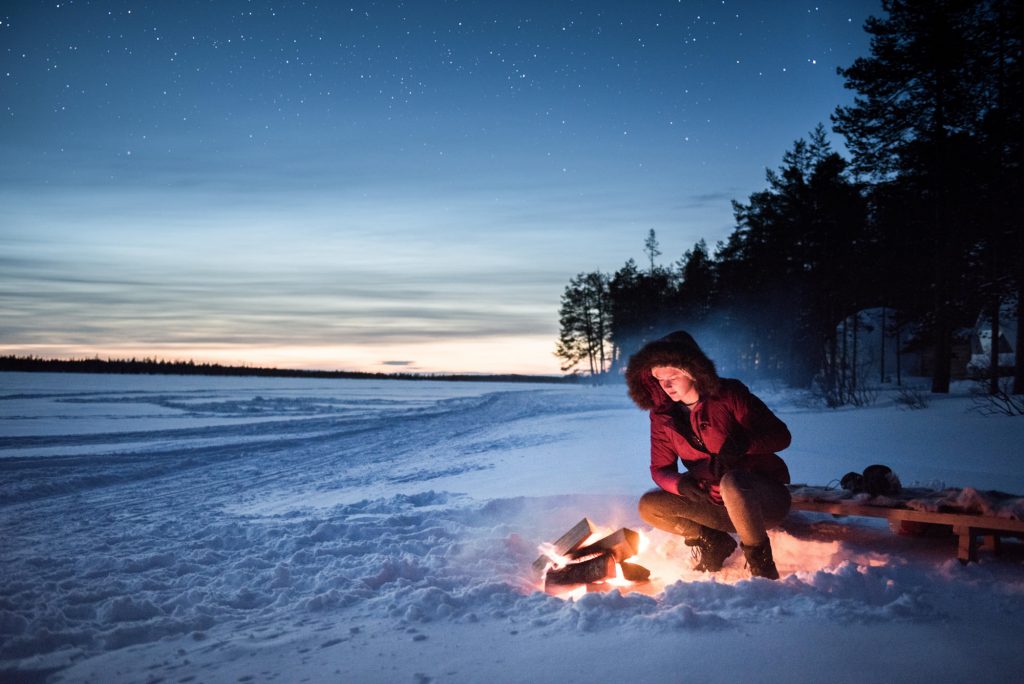
Remember, the goal of white balance adjustment is to make the colors in your image appear as they would under natural daylight conditions. This is especially important for underwater or indoor photography where the lighting can significantly affect the color temperature of the image.