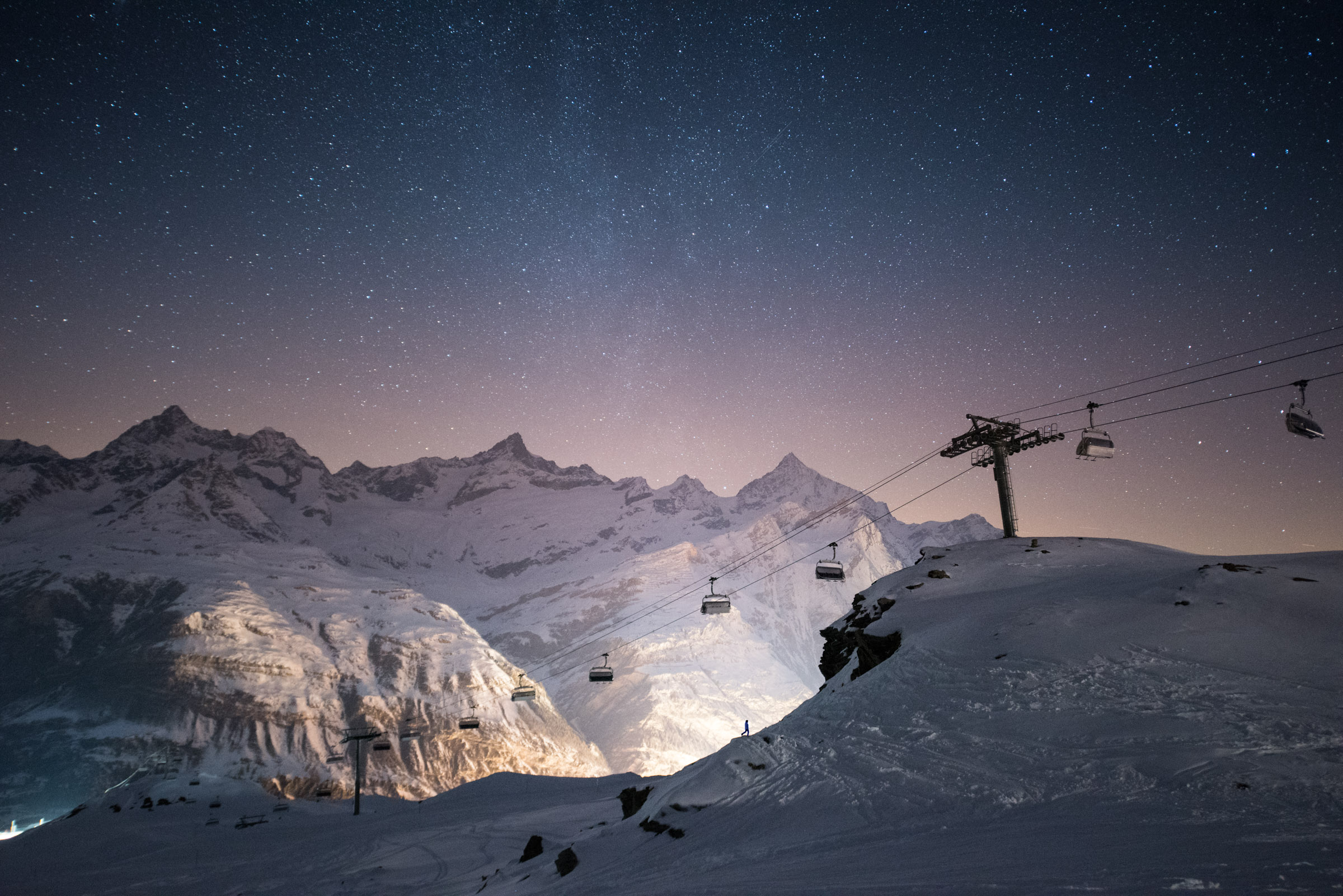
Reducing noise in images taken at high ISO settings is essential for maintaining image quality, especially in low-light photography. Here are some of the best techniques to reduce noise in Photoshop:
1. Use the Reduce Noise Filter in Photoshop
Photoshop’s built-in Reduce Noise filter is a powerful tool for noise reduction. You can access it by going to Filter > Noise > Reduce Noise. This filter allows you to adjust sliders for both color and luminance noise reduction, helping you to strike a balance between noise elimination and detail preservation.

2. Adobe Camera Raw Filter
If you’re working with RAW images, Adobe Camera Raw (ACR) has its own noise reduction capabilities. In ACR, you can find noise reduction settings in the Detail panel. Adjust the Luminance and Color sliders to reduce noise while maintaining detail.
3. Balancing Luminance and Detail
When reducing noise, it’s crucial to find a balance between luminance (grain) and detail. Increasing the Luminance slider can help reduce noise, but too much can lead to a loss of detail and a painting-like effect. Typically, a Luminance setting of around 30-40 is recommended, with Detail set at 50 to preserve as much detail as possible.

4. Color Noise Reduction
Color noise appears as random color specks in the image, especially in shadow areas. In ACR or Photoshop, you can reduce color noise by adjusting the Color slider. Be cautious not to overdo it, as this can introduce artifacts.
5. Neural Filter (If Available)
Photoshop’s Neural Filter, available in some versions, can also be used for noise reduction. It uses AI to intelligently reduce noise while preserving details.
6. Noise Reduction Plugins
Consider using third-party plugins designed specifically for noise reduction. Plugins like Neat Image or Topaz DeNoise AI can offer advanced noise reduction capabilities that integrate with Photoshop.
7. Noise Reduction Bracketing or Blending
This technique involves taking several shots at different camera settings and then merging the images in Photoshop to use the best-exposed and quality areas of the set of images. This can be particularly useful for reducing noise in high ISO images.
8. Image Stacking Noise Reduction via Smart Objects
Especially effective for crop sensor cameras, this process involves taking several shots with the same composition and settings, then stacking them in Photoshop via smart objects using the median mode. This technique can reduce noise significantly but may require masking to preserve details and should be applied locally.
9. In-Camera Noise Reduction
Many cameras offer in-camera noise reduction options for long exposures and high ISO settings. While these can be helpful, they may not provide as much control as post-processing in Photoshop.
10. Post-Processing in Lightroom
Lightroom’s Detail Panel within the Develop Module provides sliders for Luminance noise and Color noise. Adjust these sliders to reduce noise while using the Detail and Smoothness sliders to control how much detail is preserved and how smooth the image becomes.